Article
Security Checks for Executable and Archive Anime Subtitles
 0
0
 0
0
Text files do not execute code. This basic principle of computer architecture is the single most important rule to remember when downloading third-party anime subtitles for local media playback. While modern video players rely strictly on passive, uncompiled text formats like .srt or .ass to render on-screen captions, cybercriminals routinely exploit community distribution channels by masking malicious software as subtitle downloads. A “subtitle” that arrives as an .exe installer, a .bat script, or a password-protected .zip archive is almost never a harmless text file – it is a primary delivery vector for ransomware, infostealers, or trojans. Understanding how to audit file extensions, detect file size anomalies, safely inspect archive contents, and execute emergency incident response protocols protects your hardware and sensitive credentials without disrupting your media library.
Red flags in subtitle downloads: Extensions and file size anomalies
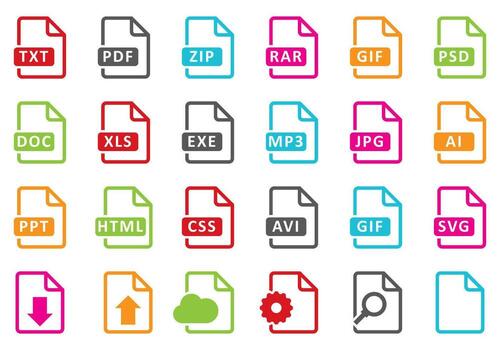
The most immediate indicator of a malicious download is a mismatch between the expected file type and the actual file extension delivered to your storage drive.
Legitimate subtitle files are plain text documents containing timestamped text lines and styling scripts. They utilize specific, standardized extensions: .srt (SubRip Subtitle), .ass (Advanced SubStation Alpha), .ssa (SubStation Alpha), or .sub / .idx (VobSub bitmap pairs). A subtitle file is fundamentally passive text; it does not contain executable code, installation scripts, or compiled binaries.
If a downloaded “subtitle” arrives as an executable file—utilizing extensions like .exe, .scr, .bat, .vbs, .js, .jar, .msi, or .application—it is not a subtitle. It is a compiled computer program designed to run code on your operating system. Running an executable subtitle immediately grants the embedded payload permission to modify registry keys, drop secondary malware, or encrypt your local drives.
File size offers another critical diagnostic clue. A standard plain-text subtitle file for a 24-minute anime episode contains roughly 1,000 lines of text, resulting in a lightweight file size between 10 KB and 100 KB. Conversely, an executable file or heavily padded archive malicious payload typically measures several megabytes (MB). If a single episode’s subtitle file requires a 5 MB download, the file contains compiled binary code or artificial padding designed to bypass antivirus scanning limits.
Subtitle format risk classification and inspection protocols
To streamline your download inspection process, use this risk classification matrix to evaluate incoming files before opening them:
| File extension | Typical file size | Security risk level | Recommended system action |
| .srt, .ass, .ssa | 10 KB – 100 KB | Safe (Low) | Open directly in any text editor (Notepad, VS Code) or media player. |
| .zip, .rar, .7z | 100 KB – 5 MB | Caution (Medium) | Do not extract automatically. Inspect internal file lists using archive preview tools. |
| .txt, .nfo | 1 KB – 5 KB | Safe (Low) | Safe informational text files frequently included alongside fansub releases. |
| .exe, .scr, .bat, .vbs | 1 MB – 20 MB+ | Critical Threat (High) | Do not run. Delete immediately and empty the system Recycle Bin/Trash. |
| Double extensions (e.g., .srt.exe) | 500 KB – 10 MB | Critical Threat (High) | Malicious social engineering trick. Delete file immediately without interacting. |
Inspection techniques for archive contents and hidden extensions
Cybercriminals often hide malicious executables inside compressed archives or use operating system display defaults to trick users.
Unmasking double extensions in operating systems
By default, both Windows and macOS hide known file extensions from users. Attackers exploit this setting by naming a file Episode_01_Subtitles.srt.exe. On a default system, the .exe portion is hidden, leaving the user to see only Episode_01_Subtitles.srt alongside a fake document icon.
To permanently neutralize this trick, toggle extension visibility in your operating system:
- Windows: Open File Explorer, click the View tab (or View > Show in Windows 11), and check the box for File name extensions.
- macOS: Open Finder, navigate to Settings > Advanced, and check the box for Show all filename extensions.
Safely previewing archive contents without extraction
While .zip or .7z archives can legitimately contain batch episode subtitles or custom font files (.ttf / .otf), auto-extracting them directly onto your desktop is dangerous. Malicious archives can contain auto-run scripts or hidden executables.
Instead of double-clicking to extract, open your archive software (such as 7-Zip, WinRAR, or PeaZip) and inspect the file directory inside the archive window. Verify that every file ends in a text extension (.srt, .ass) or a font extension (.ttf). If you spot an .exe, .vbs, or .msi file sitting alongside the text files, close the archive and delete it immediately.
Online sandbox scanning via VirusTotal
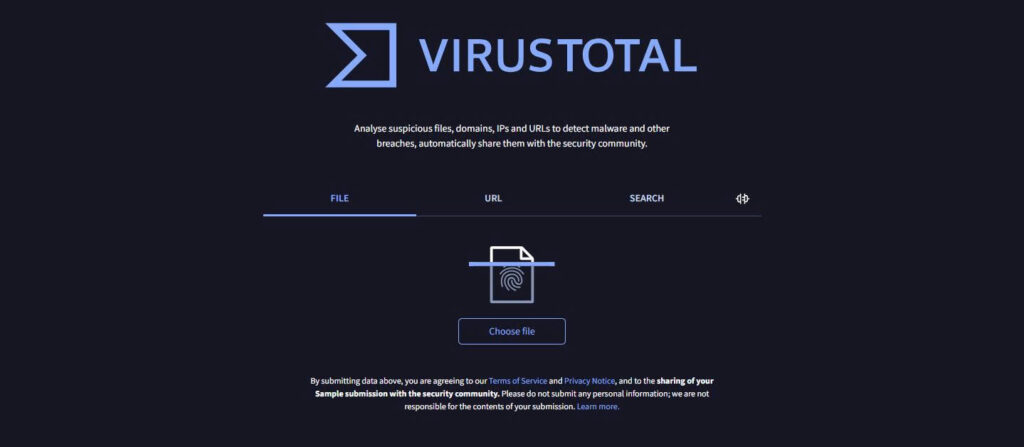
If an archive contains only text files but you remain suspicious of the source, run the file through VirusTotal before opening it locally. VirusTotal analyzes the file against more than seventy commercial antivirus engines and static analysis tools. You can upload the unextracted archive or paste the direct download URL to receive an instant security breakdown.
Incident response for accidental execution of suspicious files
If you accidentally double-clicked an executable subtitle file or extracted a malicious archive, executing a rapid incident response protocol minimizes damage.
Immediate network isolation and deep system scanning
The moment you realize you ran a suspicious file, immediately disconnect your device from the internet. Unplug your Ethernet cable and disable Wi-Fi. Most modern malware (especially infostealers and ransomware) relies on contacting a remote Command and Control (C2) server to download secondary encryption keys or exfiltrate saved browser passwords. Severing the network connection stops data exfiltration in its tracks.
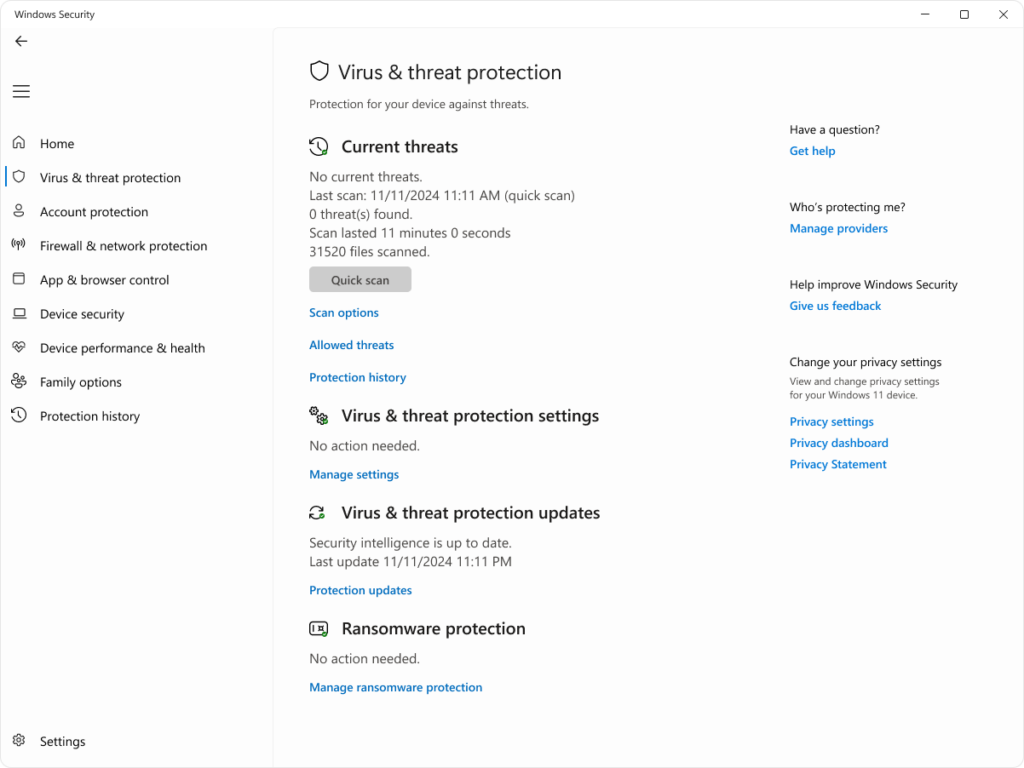
Once isolated, initiate an offline anti-malware scan. Run a full system scan using Windows Defender Offline, Malwarebytes, or HitmanPro. Do not rely on a single quick scan, as sophisticated trojans inject code into legitimate system processes (like explorer.exe or svchost.exe).
Account security and credential reset protocols
If malware execution is confirmed, assume all passwords stored in your web browser (Chrome, Edge, Firefox) have been compromised by infostealers (such as RedLine or Racoon Stealer).
From a secondary, clean device (such as a smartphone or a separate laptop):
- Log out of all active sessions across your email, banking, and social media accounts.
- Change primary account passwords immediately.
- Enable Two-Factor Authentication (2FA) using an authenticator app (like Google Authenticator or YubiKey) rather than SMS.
- If ransomware or persistent trojans are detected during system scans, back up only uninfected personal media files and perform a clean reinstallation of the operating system.


