
Article
How Phishing, Malicious Advertising, and Automatic Downloads Can Occur Even on Websites Without Browser Warnings
 0
0
 0
0
Visiting a webpage and seeing no red “Dangerous Site” warning screen from Google Chrome, Microsoft Edge, or Apple Safari frequently creates a false sense of security. Most web users operate under the assumption that if a browser allows a page to load without triggering an immediate security alert, the website is 100% safe to navigate, enter credentials, or download files.
This assumption is a dangerous security misconception. Modern browser safety warnings rely on automated blocklists – such as Google Safe Browsing or Microsoft SmartScreen – which operate reactively. A browser can only display a red warning screen after a malicious domain has been detected, analyzed, and added to a central database.
Zero-day phishing domains, compromised small-business websites, and malicious ad networks actively exploit this time-to-detection gap. Understanding how web threats operate below the blocklist threshold allows you to identify drive-by downloads and fake prompts before your system is compromised.
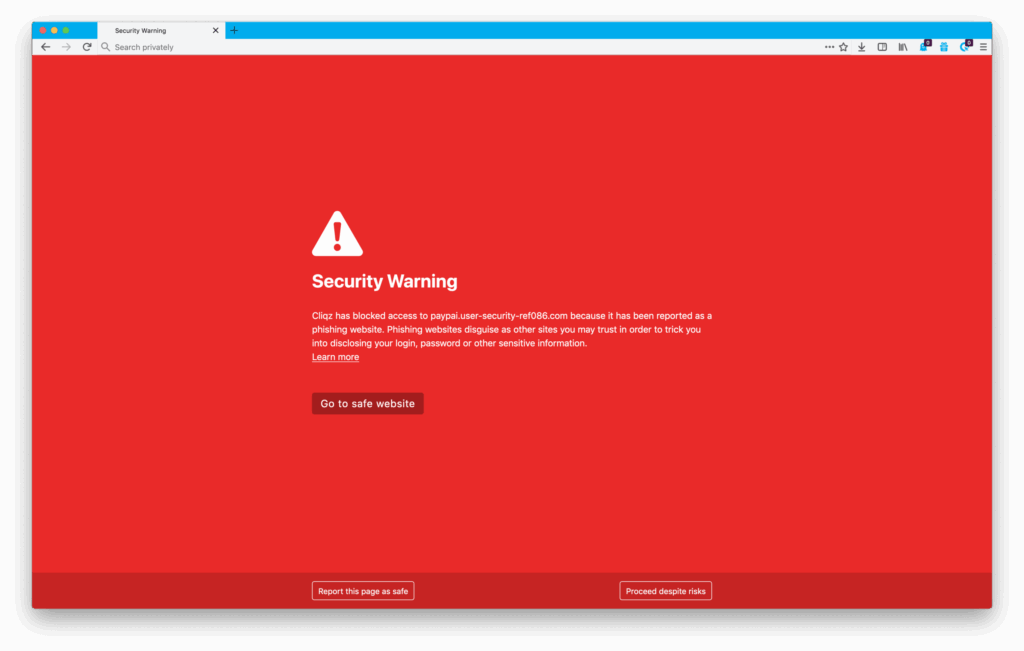
The gap in automated browser blocklists
To evaluate why clean-looking websites can still execute malicious code, you must understand the technical limitations of automated web scanners.
Security blocklists function through web crawlers that continuously scan the internet for known malware signatures and credential-harvesting scripts. When a security crawler identifies a malicious domain, the URL is added to a global black-list, which your web browser downloads during routine background updates.
However, this process involves a significant Time-to-Detection Gap, often lasting anywhere from 12 to 48 hours. Cybercriminals exploit this delay by registering fresh, short-lived domains, deploying an aggressive 6-hour phishing or malware campaign, and abandoning the domain before security crawlers ever index the page. Because the browser has no historical record of the brand-new domain, it displays a clean, green connection status, allowing the phishing page to gather passwords without triggering a warning.
Furthermore, attackers frequently hack established, legitimate small-business websites or local blogs. Because these compromised sites possess years of positive domain reputation, security algorithms treat them as trustworthy. Attackers inject hidden phishing panels or malicious redirect scripts deep inside a subfolder of a trusted site, allowing the scam to run completely under the browser’s security radar.
Anatomy of malvertising and drive-by file downloads
Malicious advertising (often termed “malvertising”) and drive-by downloads are the two most common ways malware reaches a computer without triggering initial browser warnings.
Ad network script injection and automatic redirects
Malvertising does not require a website owner to be malicious. Modern websites display advertisements supplied by third-party ad networks. Cybercriminals buy advertising space through these legal ad networks and inject malicious JavaScript payloads directly into the ad creative.
When you visit a perfectly safe news portal or blog, your browser automatically executes the third-party ad script. The code can trigger an instant background redirect, bouncing your browser through multiple intermediate servers before landing on a malicious page that executes an automatic file download.
Fake system updates and emergency scan prompts
To ensure a downloaded file is actually executed by the user, attackers deploy psychological manipulation scripts. The most prevalent method is the Fake Browser Update or Fake Virus Scan pop-up.
When landing on a compromised site, a professional-looking window pops up claiming: “Your Chrome browser is outdated! Update now to continue” or “3 Viruses Detected on Your PC.” These prompts mimic official operating system notifications. In reality, clicking “Update” or “Clean PC” simply executes the .exe or .zip file that was silently delivered to your downloads folder.
| Web threat type | Why browser blocklists miss it | On-screen visual indicator | Recommended defensive action |
| Zero-Day Phishing | Domain registered hours ago; no historical security complaints yet. | Slight spelling variations or unnatural hyphens in the address bar. | Close the tab if the domain syntax does not match the official brand. |
| Compromised Legitimate Sites | Parent domain possesses a long-standing positive security reputation. | Fake login forms hosted inside strange subfolders (e.g., site.com/wp-content/login/). | Never enter account credentials on non-standard subfolder paths. |
| Malvertising & Drive-By Downloads | Malicious code is injected dynamically inside legitimate ad network scripts. | Sudden forced redirects or unexpected .exe/.zip files in the download bar. | Force-quit the browser app; delete downloaded files without opening them. |
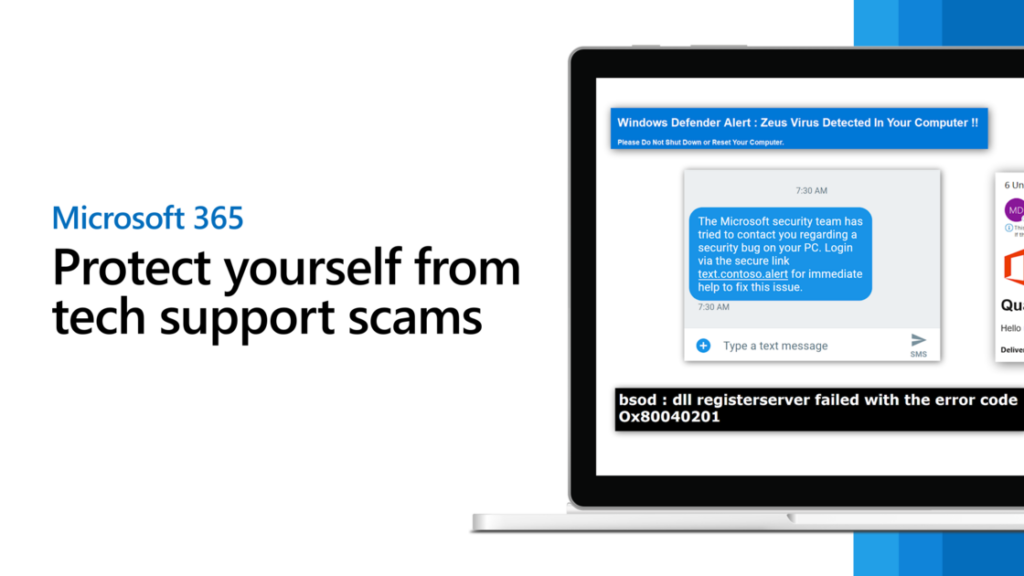
Emergency browser protocols when a webpage freezes
If a webpage suddenly locks up, displays flashing virus alerts, or begins auto-downloading suspicious files, executing the correct emergency response protocol prevents malware installation.
Force-quitting through system task managers
The most critical rule when encountering a malicious pop-up is never click anywhere on the webpage canvas—including the “Cancel,” “Close,” or top-right “X” buttons.
Scammers frequently code malicious pop-ups so that clicking the “Cancel” button actually triggers the script execution or approves the file download. If your browser window becomes locked or trapped in an infinite alert loop:
- On Windows: Press Ctrl + Shift + Esc to open Task Manager, select your browser application (e.g., Chrome or Edge), and click End Task.
- On macOS: Press Option + Command + Esc to open the Force Quit menu, select your browser, and click Force Quit.
Strict download prompt configuration
To permanently block drive-by background file downloads, adjust your browser’s default media settings. By default, web browsers automatically save downloaded files directly into your system Downloads folder.
Navigate to your browser’s settings menu (e.g., Settings > Downloads) and toggle ON the option: “Ask where to save each file before downloading.” With this setting enabled, even if an aggressive ad script attempts to launch an automatic drive-by download, the browser will freeze the file transfer and prompt you with a file save dialog box, giving you absolute control to click “Cancel” before any file touches your disk.


